Install the Chrome Extension
The AttendKit Chrome extension is the fastest way to start tracking attendance in Google Meet. Once installed, it runs quietly in the background, recording who joins your meetings, when they arrive, and how long they stay. There's nothing to press, nothing to configure.
Before You Start
- Google Chrome (version 88 or later)
- A Google account, either a free Gmail account or a Google Workspace account. Both work.
TIP
Not a Chrome user? AttendKit also comes as a Google Workspace add-on that works in any browser, including Safari and Firefox. You can use both side by side.
Steps to Install
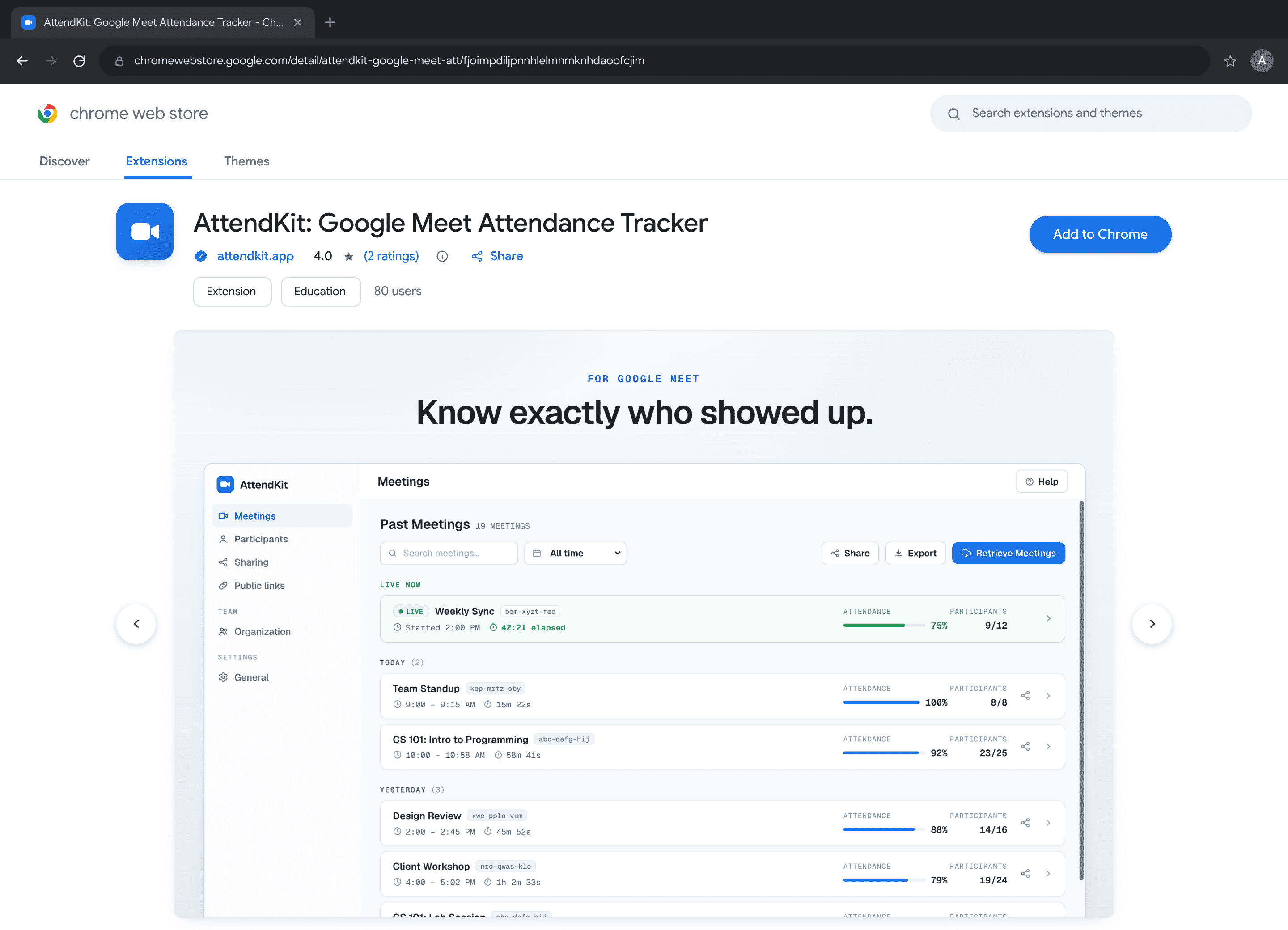
- Open the AttendKit Chrome Web Store listing.
- Click Add to Chrome on the extension page.
- Grant permissions in the confirmation dialog by clicking Add extension.
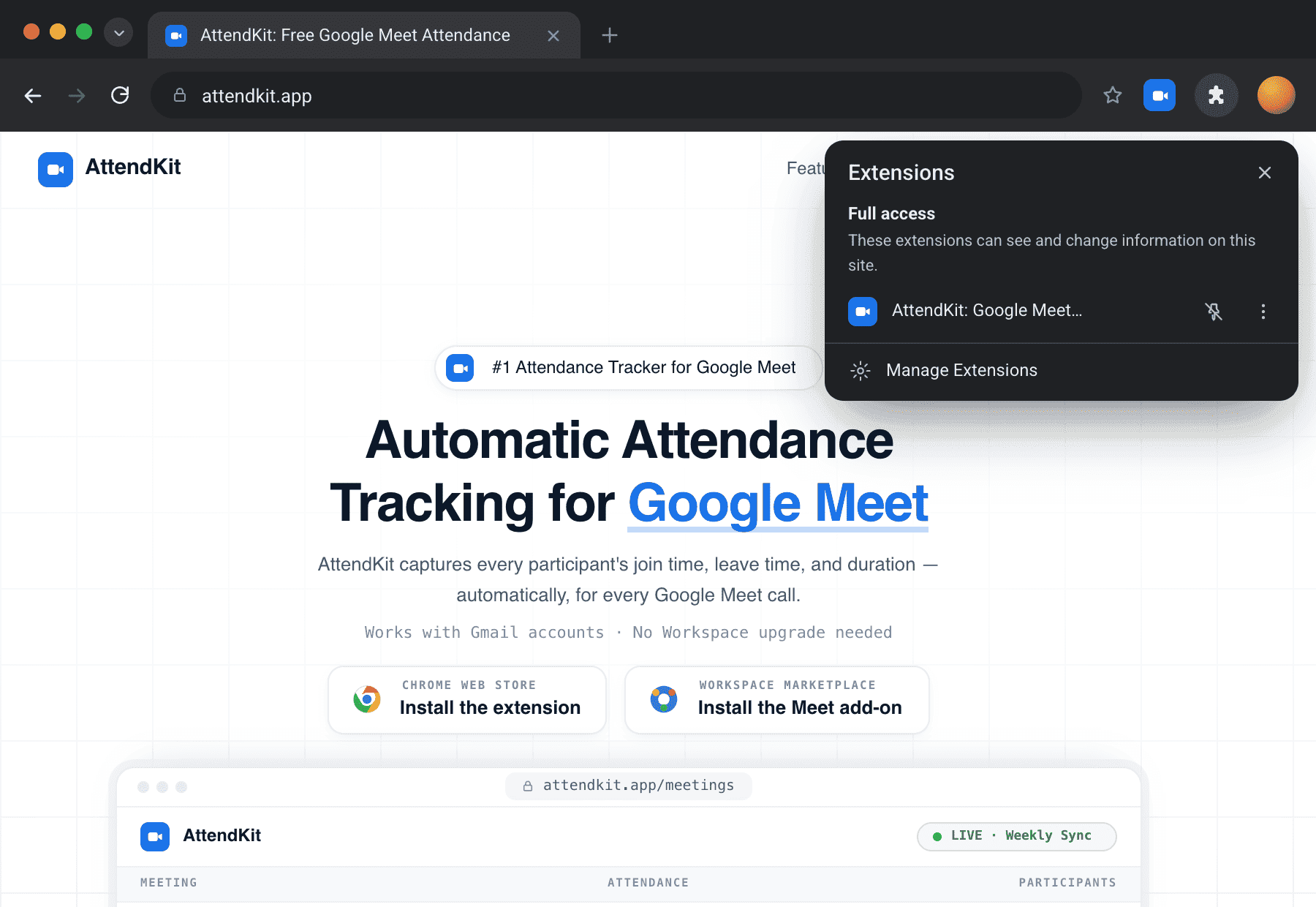
- Pin the extension to your toolbar: click the puzzle-piece icon in Chrome's toolbar, then click the pin icon next to AttendKit.
- Sign in with your Google account by clicking the AttendKit icon in your toolbar.
NOTE
Sign in with the same Google account you use for Google Meet. AttendKit only tracks calls joined with the account it is signed in to. Signing in to AttendKit with one account and joining a call with another is the single most common reason a meeting goes missing.
Verifying Installation
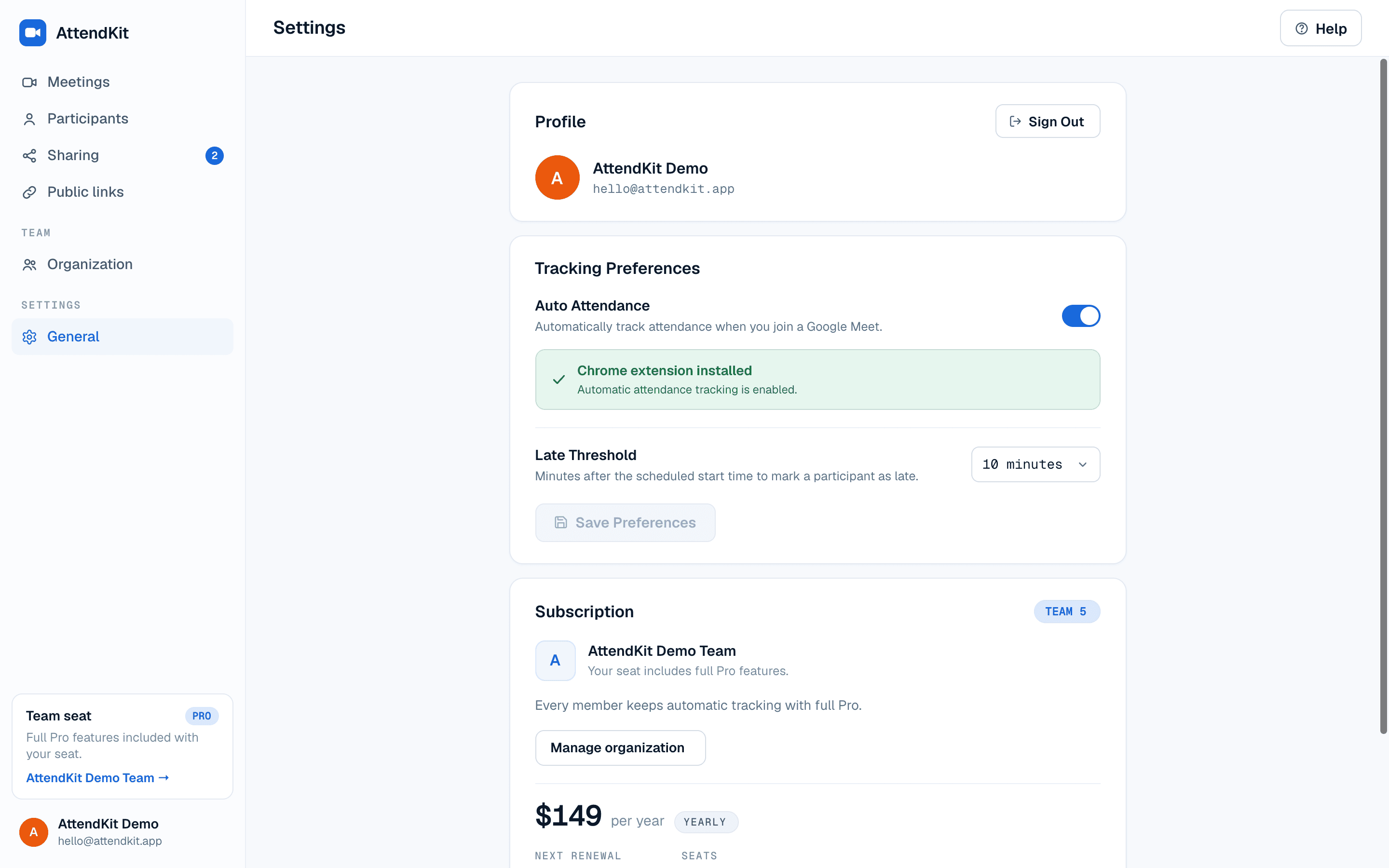
Once installed and signed in, go to your Settings page. Under Tracking Preferences, you should see a green checkmark with "Chrome extension installed". That confirms everything is connected and ready.
TIP
Already have Google Meet tabs open? Refresh them after installing. The extension activates when a page loads, so existing tabs need a refresh.
If a meeting you joined does not appear afterwards, work through Why a Google Meet Meeting Was Not Tracked.
Still need help?Contact Support