Export Attendance Reports
AttendKit lets you download attendance data as CSV or PDF. You can export a single meeting or multiple meetings in bulk.
Export a Single Meeting
- Open any meeting from your Meetings page.
- Click the Export Meeting button on the meeting detail page.
- Choose your format in the dialog.
- Click Download CSV.
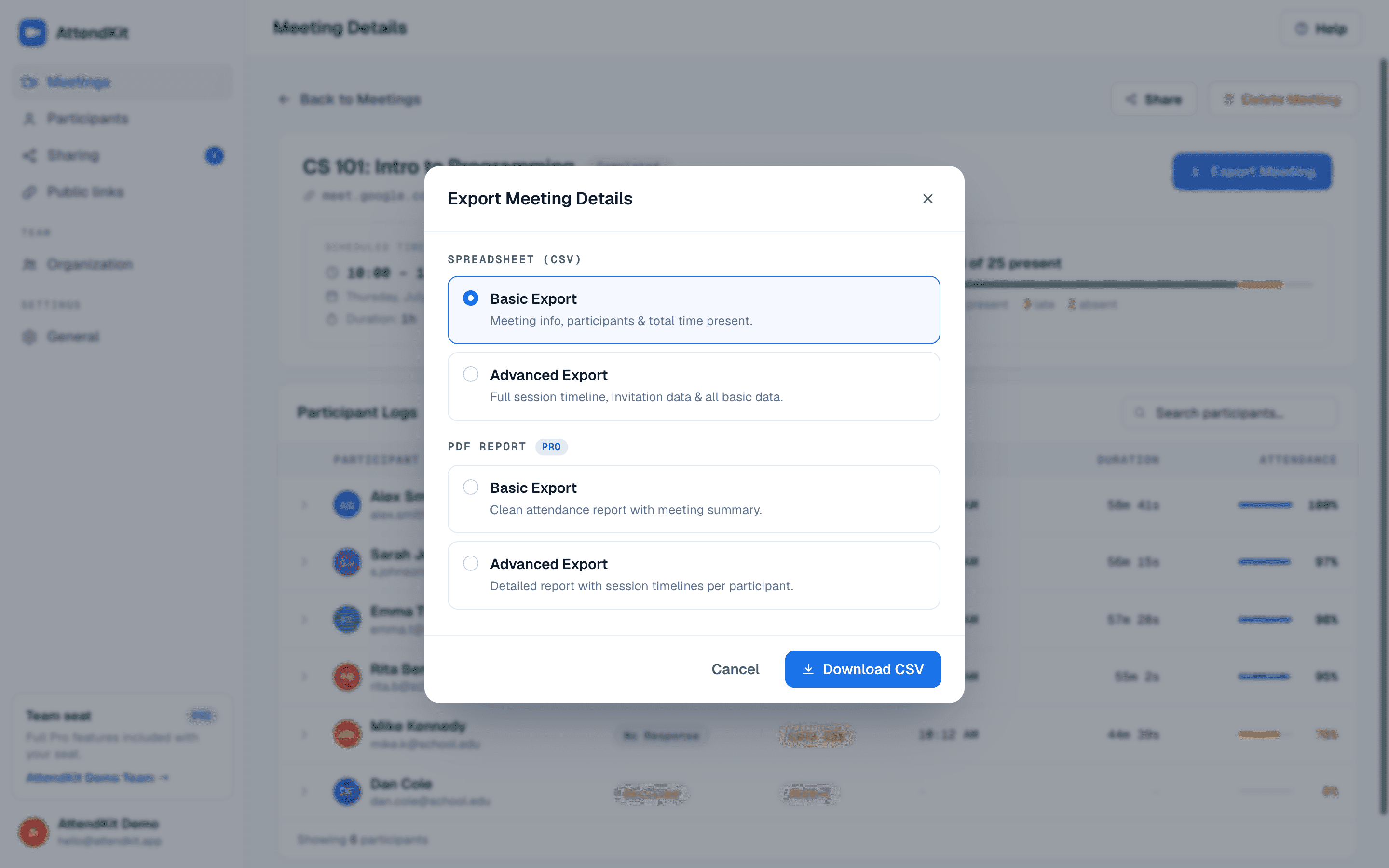
Format Options
Format
What's Included
Best For
CSV Basic
Names, emails, status, duration, attendance %
Importing into Google Sheets, Excel, LMS, or HR tools
CSV Advanced
Everything in Basic plus session join/leave timestamps, invitation status, late threshold value
Detailed analysis, pivot tables, charts
PDF Basic
Formatted attendance report with meeting summary and participant table
Sharing with colleagues, emailing, printing
PDF Advanced
Detailed report with session timelines for each participant
Compliance documentation, auditing, formal records
TIP
On the Free plan, CSV Basic export is available for individual meetings. Upgrade to Pro to unlock PDF reports, Advanced exports, and bulk export.
Bulk Export (Pro)
Download attendance for multiple meetings in one file:
- Go to your Meetings page.
- Click the Export button in the toolbar.
- Choose how many meetings to include: Last 10, Last 25, Last 50, or Custom. Choosing Custom reveals From and To date fields.
- Select Basic or Advanced detail.
- Click Download CSV.
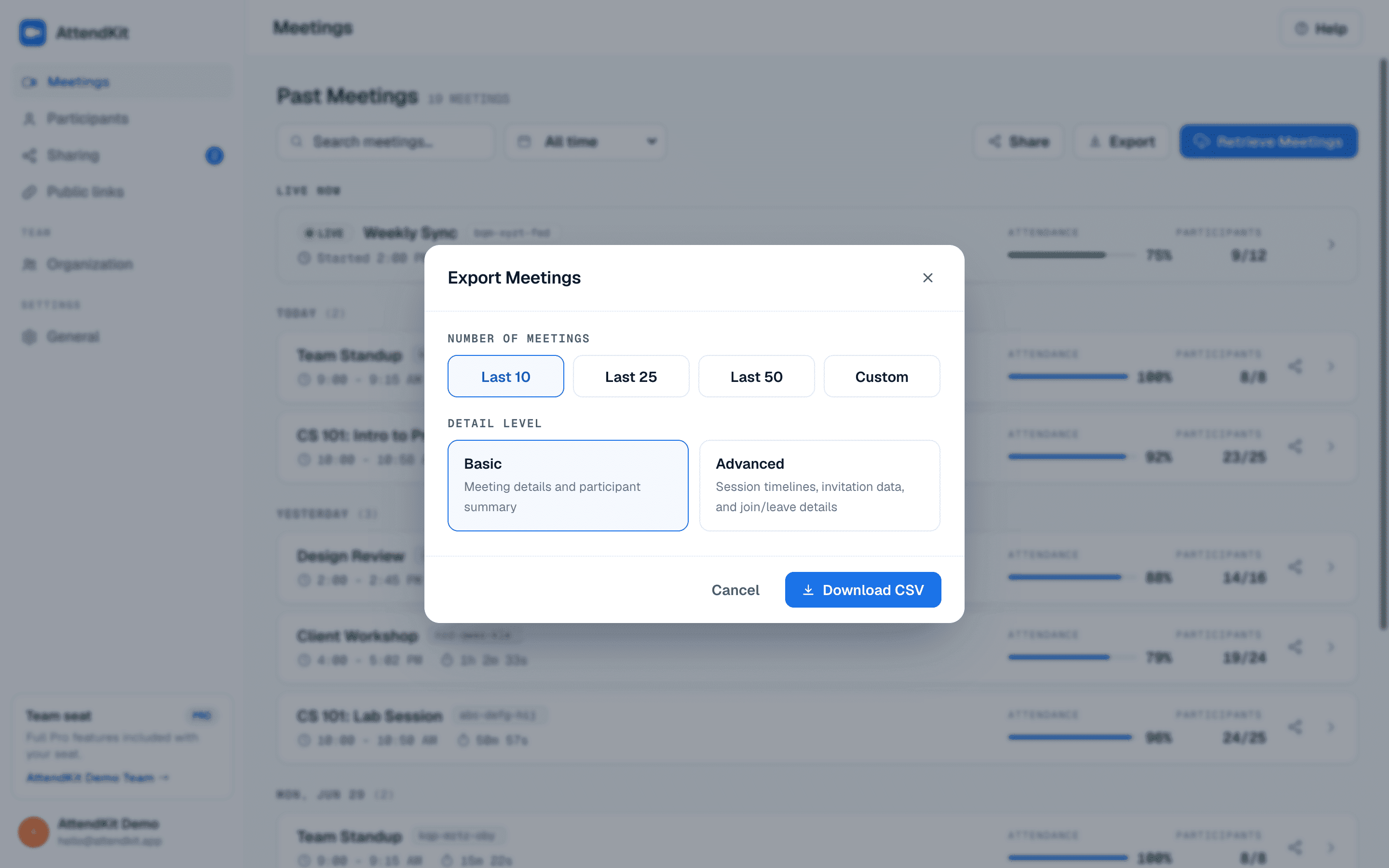
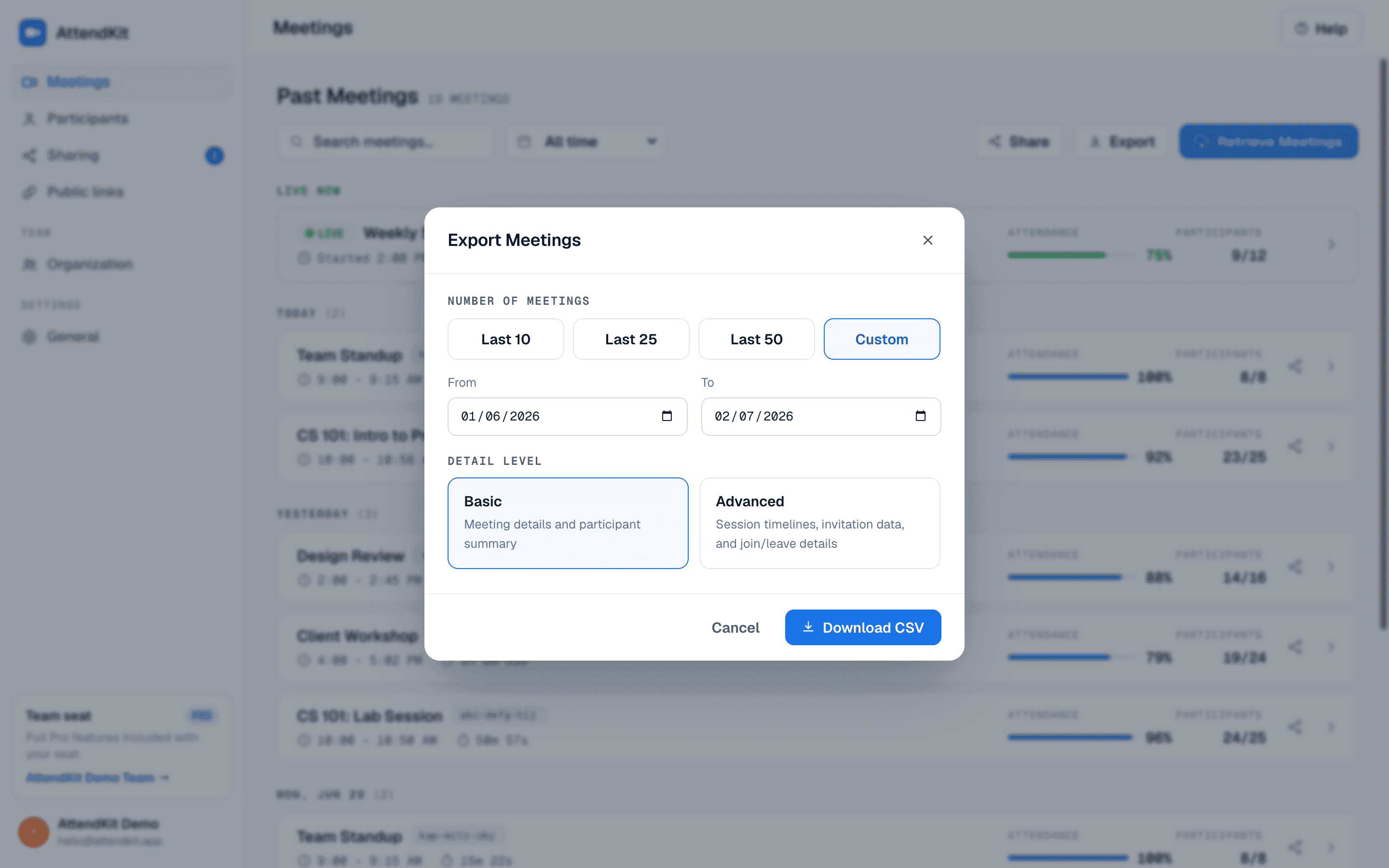
The resulting CSV has one row per participant per meeting, ready for pivot tables or gradebook import.
Importing into Google Sheets
- Export your data as CSV from AttendKit.
- Open Google Sheets and go to File, then Import, then Upload.
- Select the downloaded CSV file.
- Click Import data.
Export From a Public Link
A public report link can let the person you send it to download the report themselves, as a Basic CSV or a Basic PDF. That only works if you turned Allow export on when you created the link. It is off by default.
Unlock unlimited meetings, PDF exports & analytics
Upgrade to Pro for unlimited tracking and advanced features.
Still need help?Contact Support