How to Get a Google Meet Attendance Report (2026 Guide)
If you've ever tried to figure out who actually showed up to a Google Meet call, you've probably discovered the same uncomfortable truth thousands of teachers, managers and event organizers run into every day: Google Meet does not give most users an attendance report.
The feature exists, but it's tucked behind specific paid Workspace plans, and even then it only fires for meetings that meet certain criteria. For everyone else, the meeting ends, the participant grid disappears, and there's no record of who joined, when, or for how long.
That gap matters. Schools need attendance for grading. Companies need it for compliance and payroll. Webinar hosts need it to follow up with engaged attendees.
This article covers four ways to get a Google Meet attendance report in 2026, including Google's native tracking, free Chrome extensions, manual workarounds, and form-based check-ins. By the end you'll know exactly which method fits your situation, what each one costs, and what each one actually captures.
What Is a Google Meet Attendance Report?
A Google Meet attendance report is a structured record of who attended a specific meeting and how long they were present. A good report goes well beyond a simple list of names.
It captures the participant's identity (name and email when available), the exact timestamp they joined, the timestamp they left, the total time they spent in the call, and ideally the join and leave events for participants who came and went multiple times. For recurring classes or standing meetings, a useful report also stitches together attendance across sessions so you can see patterns over time.
The most useful reports also surface derived metrics: attendance percentage relative to the meeting's total length, late detection, average time per participant, and a flag for participants who never showed up at all (when you have a known invite list to compare against). The difference between a raw participant log and a real report is the difference between data and insight.
Method 1: Google's Built-in Attendance Tracking
Google does ship a native attendance tracking feature, but it's only enabled on a narrow slice of Workspace plans. When it works, the host receives an email after the meeting with a CSV attachment listing each participant, their join time, leave time, and total duration in the call.
Who Can Use It
Prices as published by Google in August 2026. Check Google's current pricing before you commit.
How to Enable It
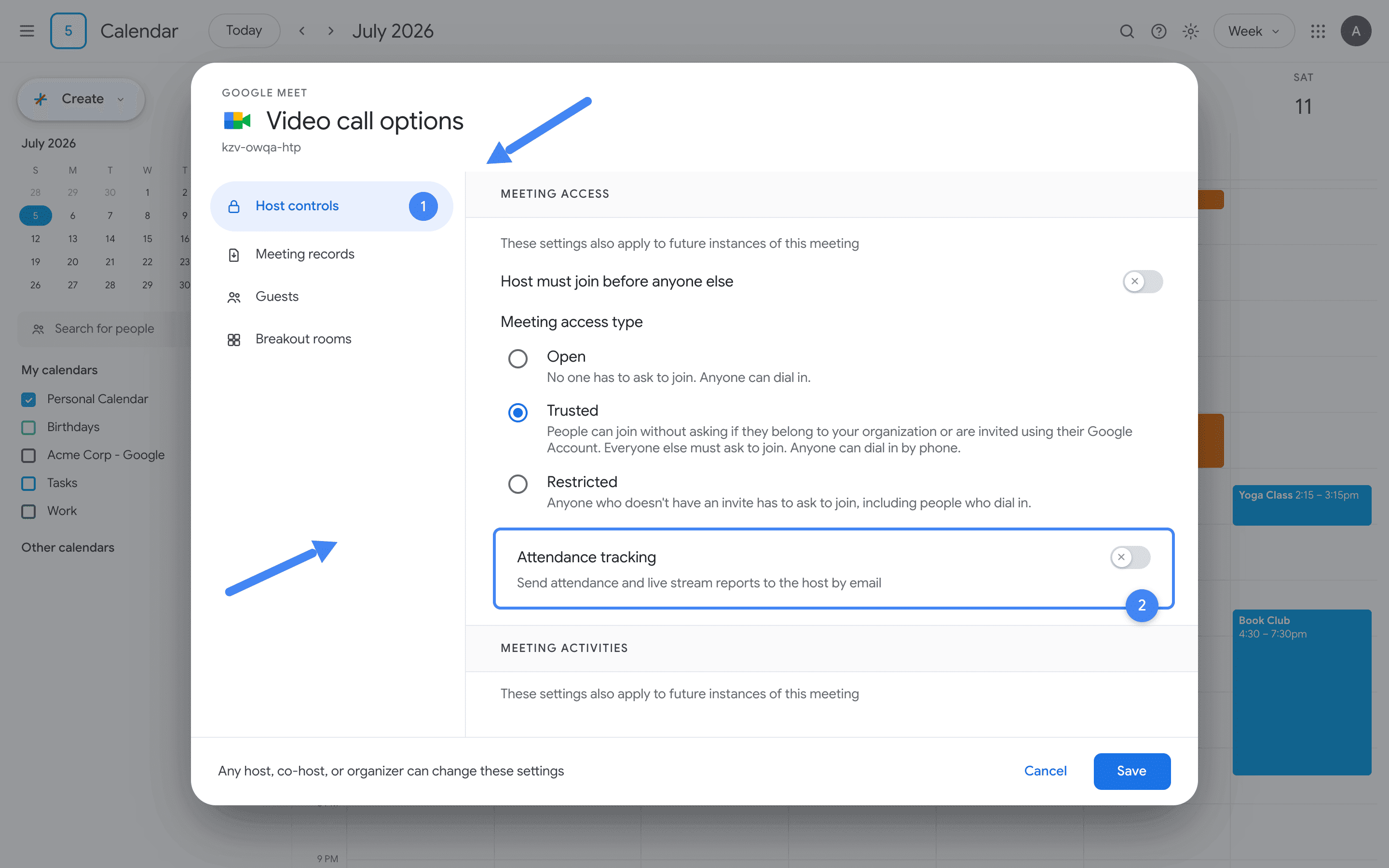
There are two places to turn it on. The cleanest path is from your calendar invite, because the setting sticks for the whole meeting from the moment people start joining.
From Google Calendar:
- Open the calendar event you want to track.
- Click the settings gear next to the Google Meet video conferencing block.
- Toggle on Attendance tracking.
- Save the event. The host will get a CSV report by email after the call ends.
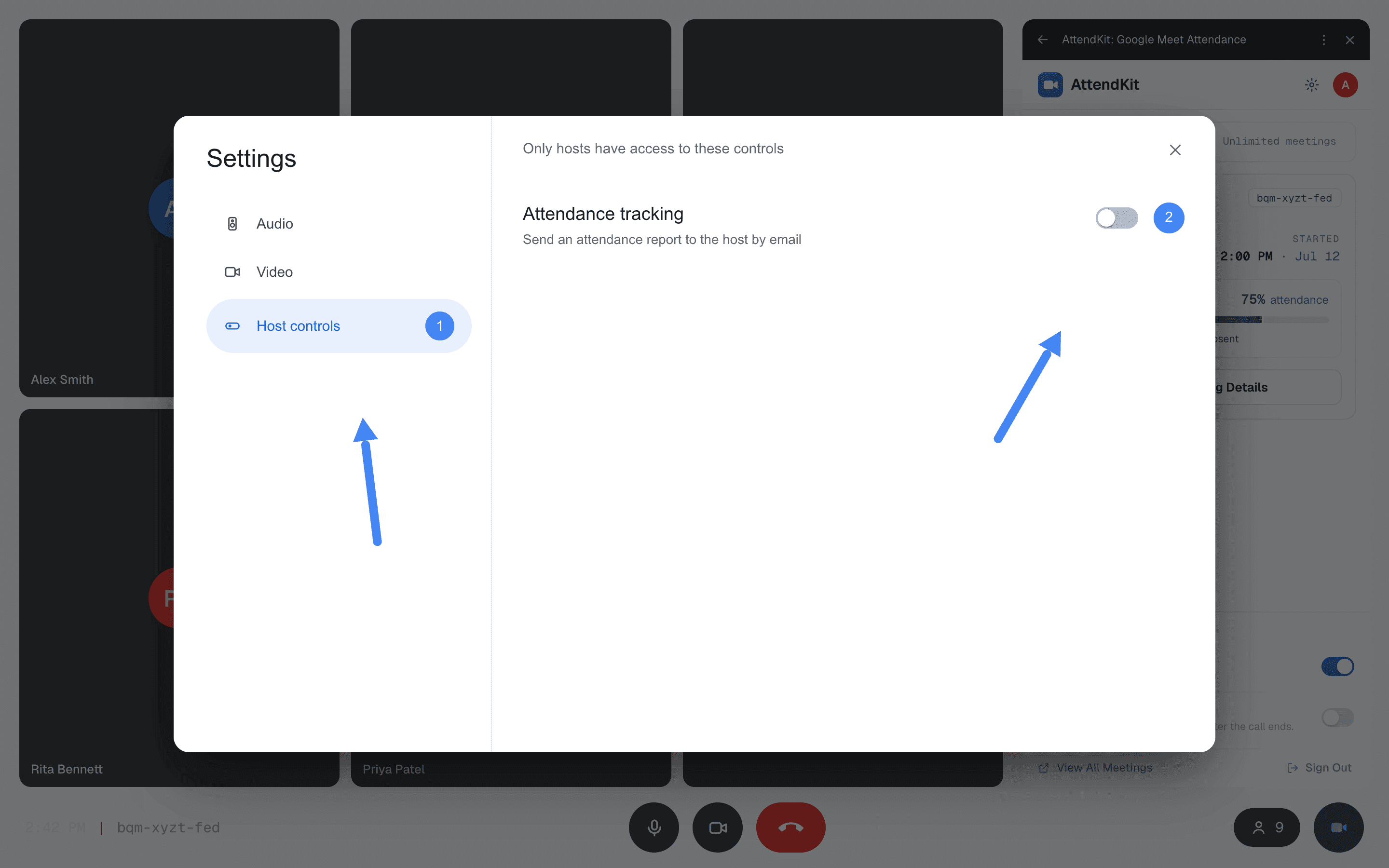
During an active meeting:
- Click the Host controls shield icon at the bottom right.
- Open the Meeting activities panel.
- Toggle on Attendance tracking.
- End the meeting. The report will be emailed once the meeting concludes.
What You Get
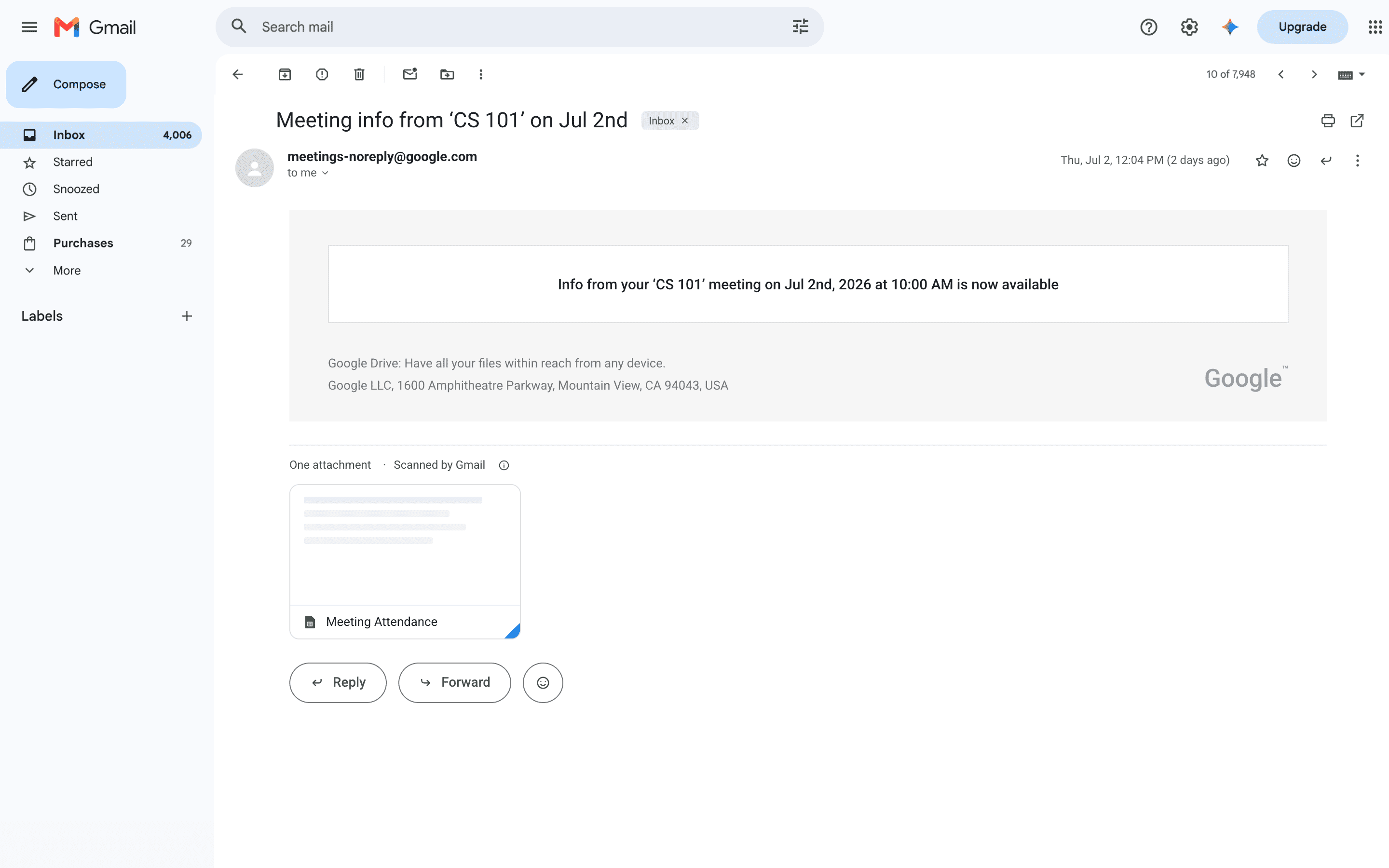
The report arrives in the host's inbox roughly 30 minutes after the meeting ends as a CSV attachment. It contains the participant's name, email (when available), the time they first joined, the time they left, and total time in the call.
Google does not generate a report for every call. Very short meetings and those with only a couple of participants are commonly reported as producing nothing at all, so check Google's own documentation for the current thresholds before you rely on it.
Limitations of Google's Native Tracking
- Only available on Business Plus, Enterprise, Education Plus, and Teaching & Learning Upgrade plans.
- Free Gmail accounts are completely excluded, even for the host.
- Reports are only emailed; there is no dashboard or web view.
- No historical archive. If you delete the email, you lose the report.
- No combined view across recurring meetings or classes.
- No analytics, no late detection, no attendance percentages.
- Skipped entirely for meetings with fewer than 5 attendees or under 2 minutes.
- Cannot be exported as PDF without manual reformatting.
Method 2: Use a Chrome Extension (Free, Works with Any Account)
Chrome extensions read the participant grid directly from the Google Meet web client, which means they work for every account type including Gmail, Workspace Starter, Standard, and Education Fundamentals. They're the most popular alternative for users who can't justify upgrading to Business Plus just to get an attendance email.
AttendKit is the option we'll walk through here because it is free for your first 30 meetings, captures more data than Google's native tracker, and stores everything in a searchable web dashboard so you don't lose anything.
How AttendKit Works
- Install the Chrome extension from the Chrome Web Store. It takes about 20 seconds. (Or use the Workspace add-on if your organization prefers it.)
- Sign in with Google on the AttendKit dashboard. AttendKit requests read-only access to your Meet meeting records, Calendar events, Contacts, other contacts, and your organization's directory. Nothing is granted write access.
- Join a meeting normally. The extension detects when you join a Meet call and starts tracking participants in the background.
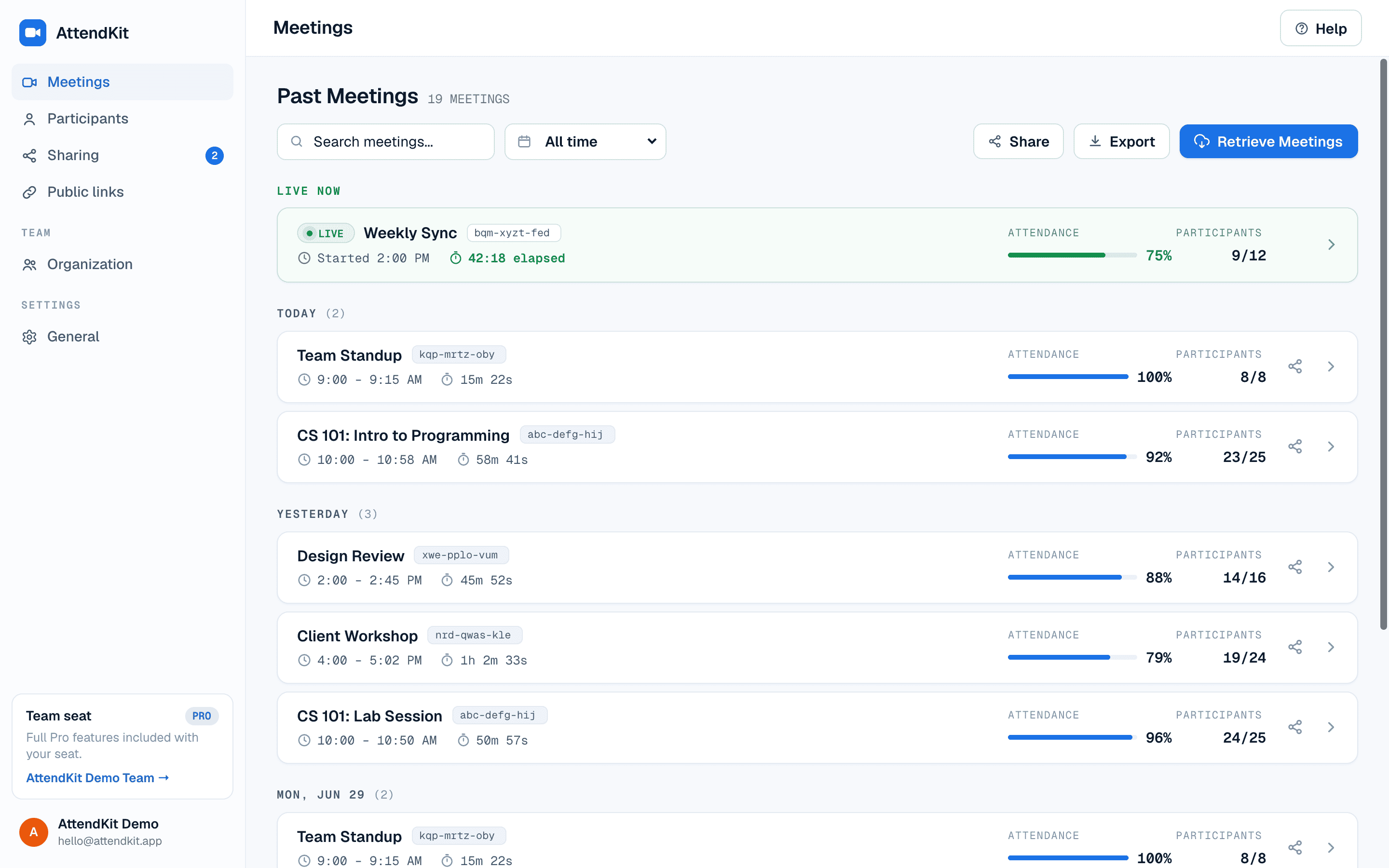
- View your report in the AttendKit dashboard after the call, once you are signed in. The meeting is already there, fully enriched with calendar context, participant durations and join/leave events.
What AttendKit's Report Includes
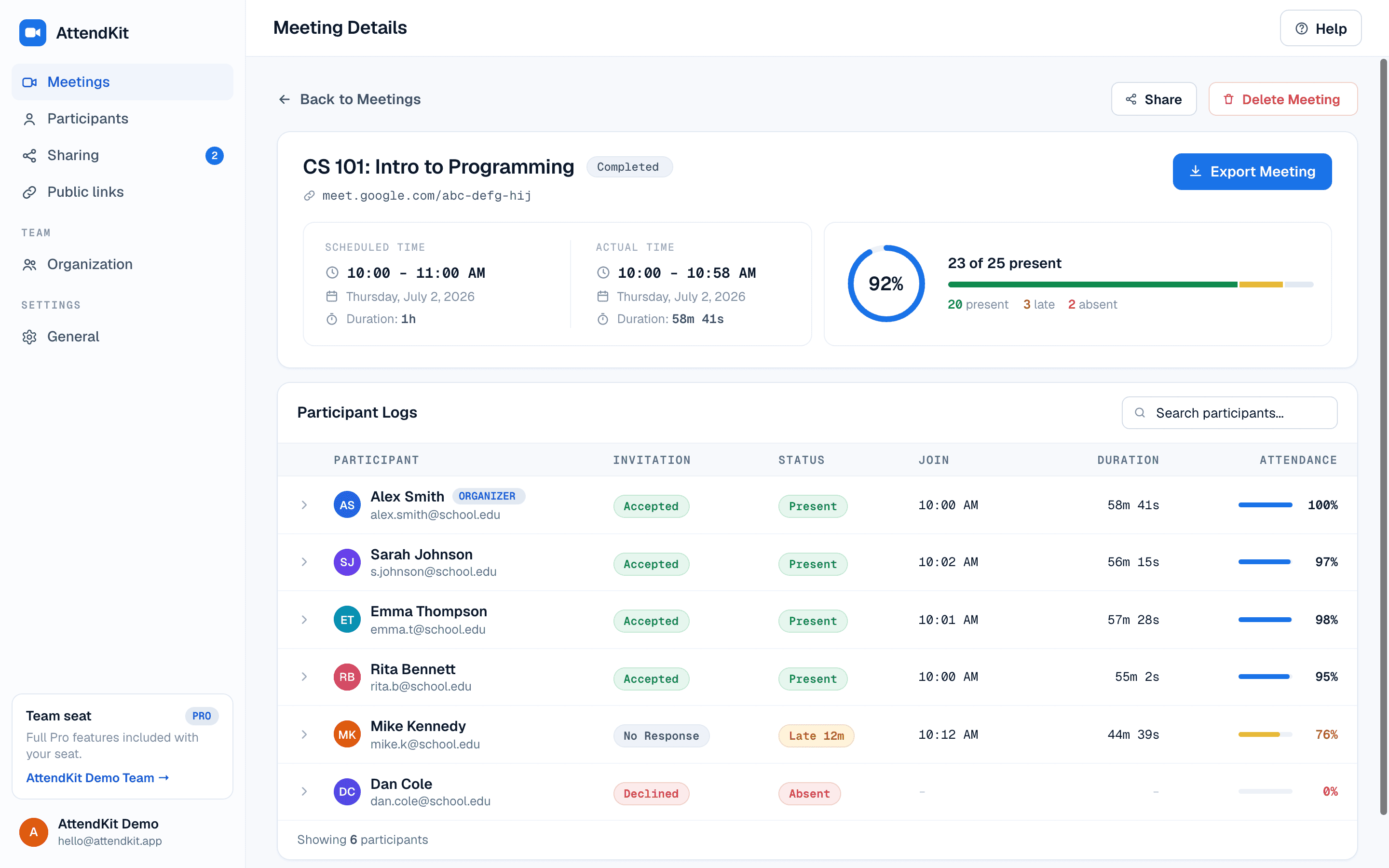
AttendKit's reports go several layers deeper than Google's native CSV. Each meeting records every join, every leave, and every reconnect for each participant, alongside calendar context that makes the data immediately useful.
Here's what each report contains:
- Participant identity: name, email when available, and profile photo from their Google account.
- Join and leave timestamps: every entry and exit, not just the first and last.
- Total time in call: summed across multiple sessions if the participant rejoined.
- Attendance percentage: calculated against the meeting's actual length.
- Attendance status (present, late, or absent): based on when the meeting actually started and your late threshold setting.
- Anonymous and phone-dial-in handling: these are tracked separately so signed-in attendees don't get mixed up with guests.
- Calendar enrichment: the meeting title, description, organizer, and invitee list pulled from Google Calendar. See full meeting details for more.
- Cross-meeting history: click any participant to see participant profiles with every meeting they've attended with you.
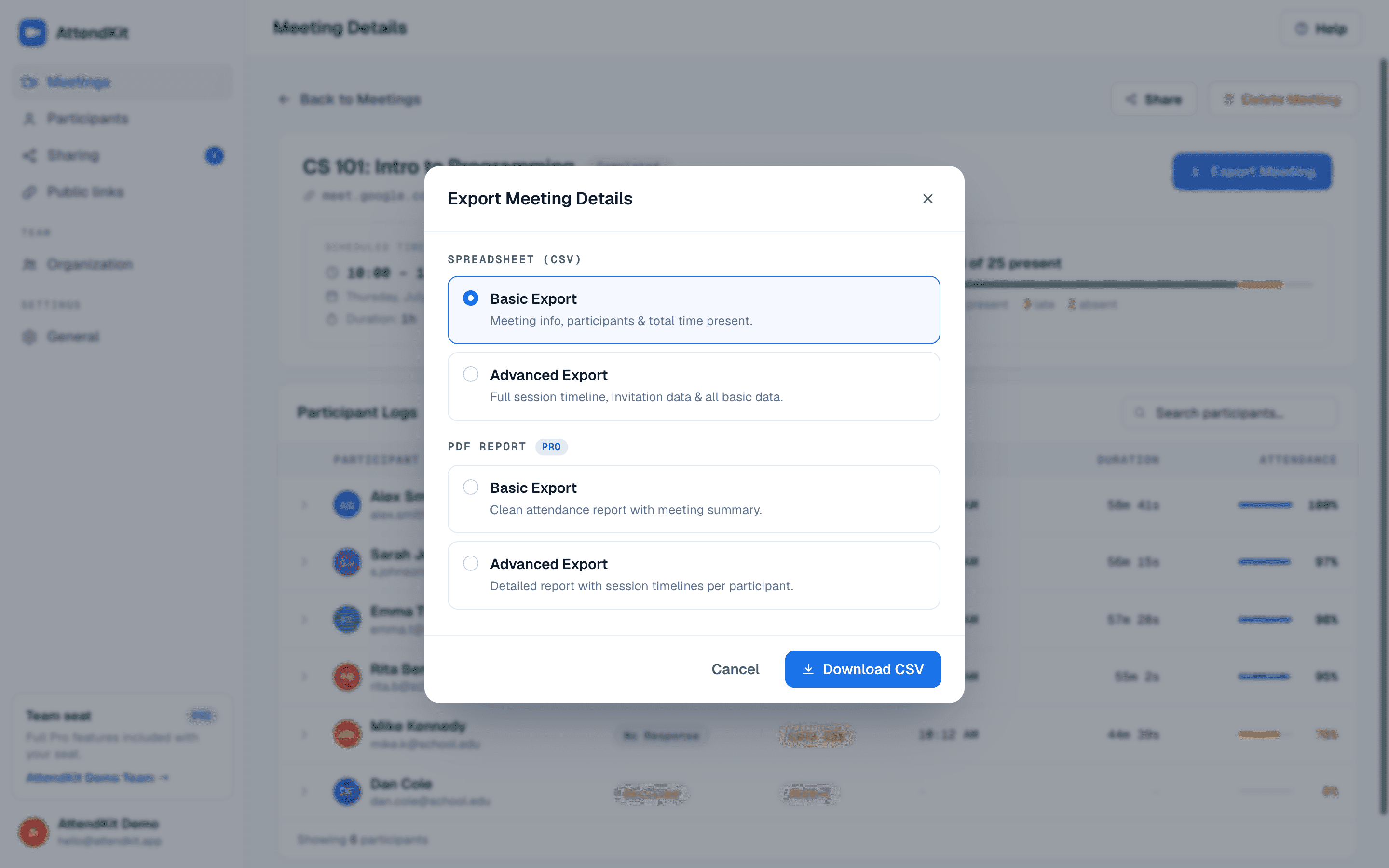
- CSV or PDF export: download a full report for any meeting in two clicks.
AttendKit Pricing
AttendKit's free tier covers your first 30 meetings, which is enough to see whether it fits how you work before you pay for anything. The limit is a lifetime total, not a monthly allowance, and it does not reset. The Pro plan is $39 per year and includes unlimited meetings, advanced CSV export, PDF reports, retrieving past meetings, and public report links. Once you are signed in you can configure preferences from Settings.
Method 3: Take Manual Screenshots
Before extensions and native tracking existed, the most common workaround was simply screenshotting the participant panel during the call. It still works and costs nothing, but it has clear limitations.
How to Do It
- Open the participant panel by clicking the People icon in the bottom right of the Meet UI.
- Take a screenshot at a few points during the meeting. Beginning, middle, and end work well.
- Scroll and capture additional screenshots if the list is long, so you cover every name.
- Transcribe the names into a spreadsheet with timestamps after the meeting.
When This Works
Screenshots are fine for one-off meetings with under a dozen participants where you only need a rough headcount. They're a reasonable last-resort option if you're a guest in a meeting (you're not the host) and you can't install software.
Why This Doesn't Scale
- You miss anyone who joins or leaves between screenshots.
- No durations. You only know who was visible at the moment of capture.
- Manual data entry is error-prone and slow.
- Anonymous guests look identical to signed-in attendees.
- For a 30-person class, you'll spend more time transcribing than teaching.
Method 4: Use a Google Form
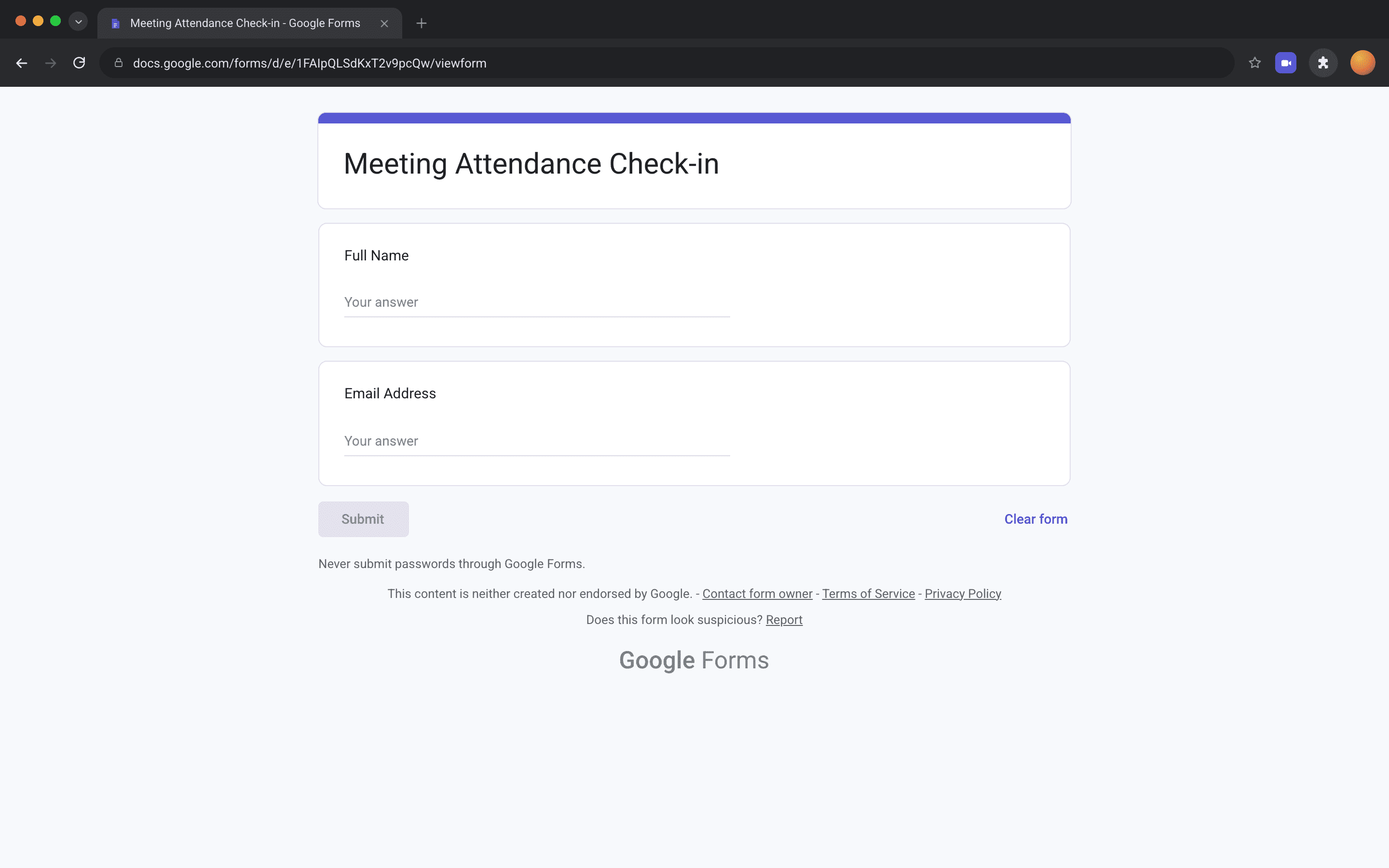
Another no-cost approach is to ask attendees to self-report through a Google Form. You drop the form link in the chat, and Google Forms time-stamps each submission. The responses land in a Google Sheet you can sort by name or time.
How to Do It
- Create a Google Form with fields for Name, Email and any optional questions.
- Restrict the form to your domain if you want to require sign-in.
- Paste the form link into the Meet chat at the start of the meeting.
- Open the linked Google Sheet to see submissions with timestamps.
Limitations
- Self-reporting is unreliable. People forget to fill it out.
- You only capture sign-in time, not how long they stayed.
- Anyone can submit at any time, including after the meeting.
- No automatic deduplication if someone fills it out twice.
- Doesn't track late arrivals or early departures.
Comparing All 4 Methods
How to Read Your Attendance Report
Whether you use Google's native CSV or AttendKit's dashboard, the columns mean roughly the same thing. Knowing how to interpret them turns a list of names into actionable information.
Join time is the timestamp of the participant's first appearance in the meeting. If someone disconnects and rejoins, only the first join is shown in Google's native CSV. AttendKit logs every entry as a separate session.
Leave time is the timestamp of their last exit. A participant who leaves and rejoins three times will have a single "leave time" equal to the final exit. The gap between sessions is invisible in Google's report but visible in AttendKit's session timeline.
Duration is the sum of all the time the participant was actually in the call, not the difference between first join and last leave. A participant who joined for 10 minutes, left, then came back for another 15 minutes has a duration of 25 minutes, even if 90 minutes elapsed between their first join and last leave.
Attendance percentage is duration divided by total meeting length. A 50-minute call where someone was present for 40 minutes gives an 80% attendance rate. This is the most useful single number for grading or compliance.
Status (present, late, absent) is calculated against the meeting's actual start. AttendKit defaults to a 10 minute grace period. Anyone joining after that is flagged late. A meeting started directly in Meet rather than from a Calendar event captures no invitation status, so nobody is marked absent, but present and late still work. See why attendance data looks wrong.
What to Do With the Report
Reading the report is usually not the end of the job. Somebody else normally needs to see it.
You can export it as a CSV on any plan, or as a PDF on Pro, which is the right choice when it has to go into a gradebook or an invoice. For someone outside your organization, a public report link opens the report in any browser with no sign in, with participant emails masked and an optional expiry date. If the person who needs it is a colleague, a Team plan lets you share the meeting so it appears in their own AttendKit account, with no file to send at all.
Frequently Asked Questions
Not from Google directly. Google's native attendance tracking is restricted to Business Plus and higher. To track attendance without Workspace, install a Chrome extension like AttendKit, which works on every account type.
Only if attendance tracking was enabled on a supported plan. Otherwise the participant grid disappears the moment the call ends and there is no way to retrieve it. Extensions like AttendKit save the data to a dashboard so you can pull it up weeks later.
Google's native report can leave out people who were only briefly connected, and anonymous guests sometimes appear without a name. AttendKit records anonymous participants separately with their join and leave times preserved.
Not in Google's native report. It only shows the first join and last leave. AttendKit logs each session separately so you can see the exact timeline of joins, leaves and rejoins for every participant.
Yes. AttendKit's free tier covers your first 30 meetings at no cost and works with any Google account, including free Gmail. The limit is a lifetime total rather than a monthly allowance. For regular use, the Pro plan at $39 per year is far cheaper than upgrading every seat in your organization to Business Plus.
Export it as a CSV on any plan, or as a PDF on Pro. On Pro you can also publish a public report link for someone outside your organization, and on a Team plan you can share the meeting with a teammate so they open it in their own AttendKit account.
Know who joined, when they arrived, and how long they stayed.